How to Use Clay for B2B Lead Generation? [Workflow Examples]

This blog is for you…
If you’re tired of building lead lists by hand.
Copying names from LinkedIn, checking company websites, verifying emails one by one.
Sounds familiar?
It’s slow.
It’s messy.
And it takes hours every single week.
You already know how important good data is for outbound.
But getting that data right? That’s the hard part.
That’s where Clay helps.
It finds, enriches, and organizes your leads, all in one place.
No messy spreadsheets. No switching between tools.
Teams at HubSpot, OpenAI, Rippling, and Notion already use Clay to run their lead generation faster and cleaner.
You can do the same.
In this blog, I’ll show you:
- How to use Clay for B2B lead generation step by step.
- How to build simple workflows that find and enrich leads automatically.
- And how to connect Clay to your outreach tool to start campaigns right away.
Let’s make your lead generation easier, and a lot faster.
What Clay Actually Does (And Why It’s Perfect for Lead Gen)

Clay is a tool that helps you find and prepare B2B leads without doing everything by hand.
It brings data from more than 100 trusted sources into one clean table.
You can pull company and contact details, enrich them with fresh info, and send everything straight to your outreach tool or CRM.
So instead of juggling ten different tabs, you do it all inside Clay.
Here’s what makes it stand out:
- Finds and collects data from 100+ sources.
- Adds missing details like emails, roles, and company info.
- Scores and filters lead automatically with simple formulas.
- Send ready-to-use leads into your outreach tool, no CSVs, no copy-paste.
Clay vs. Manual Lead Sourcing
Clay Workflow: How It Works
Here’s what a simple workflow looks like inside Clay:
1. Find your leads
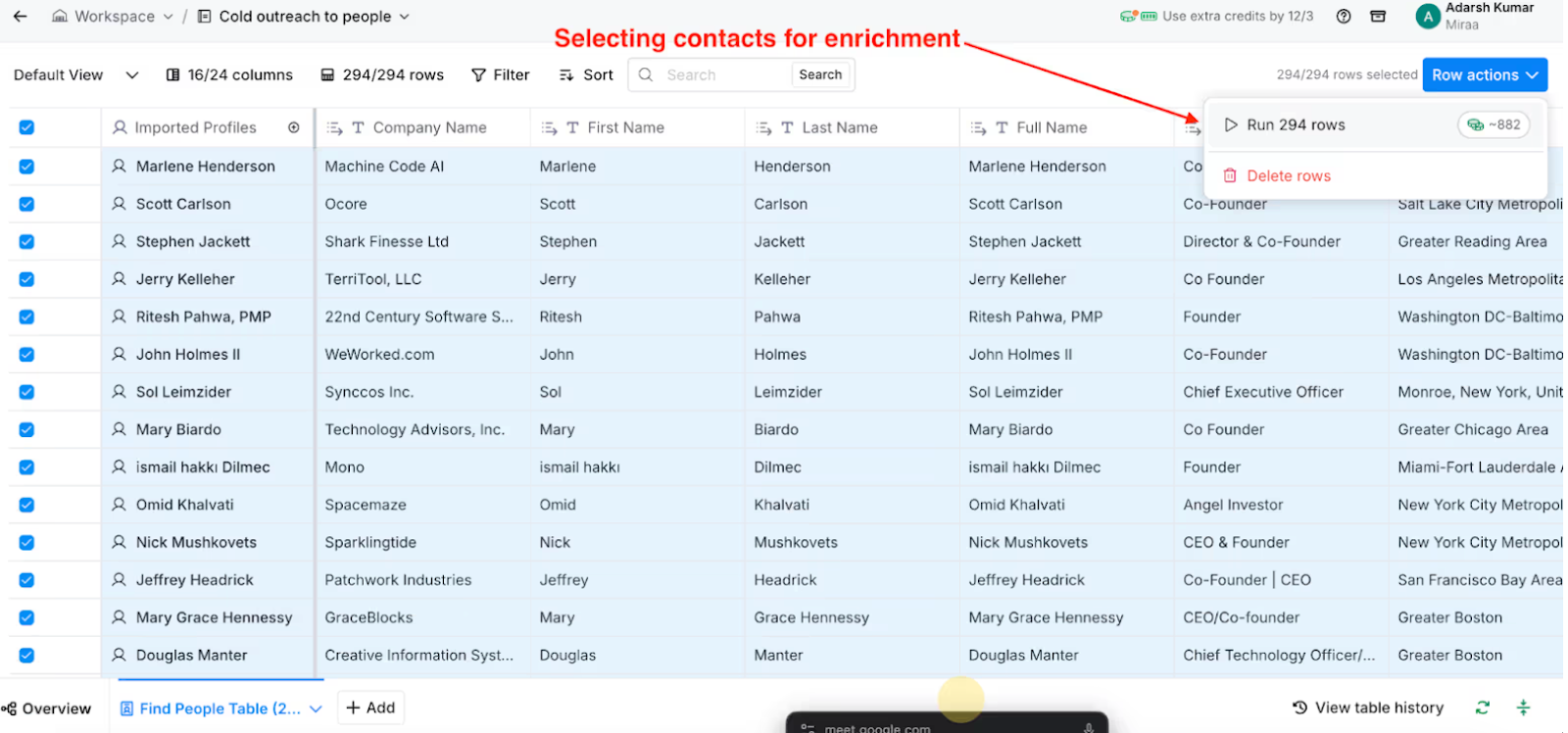
Start by adding company names or domains.
You can pull them from LinkedIn, Apollo, Crunchbase, or any data source you already use.
Clay automatically fills your table with the basic info.
2. Enrich your data
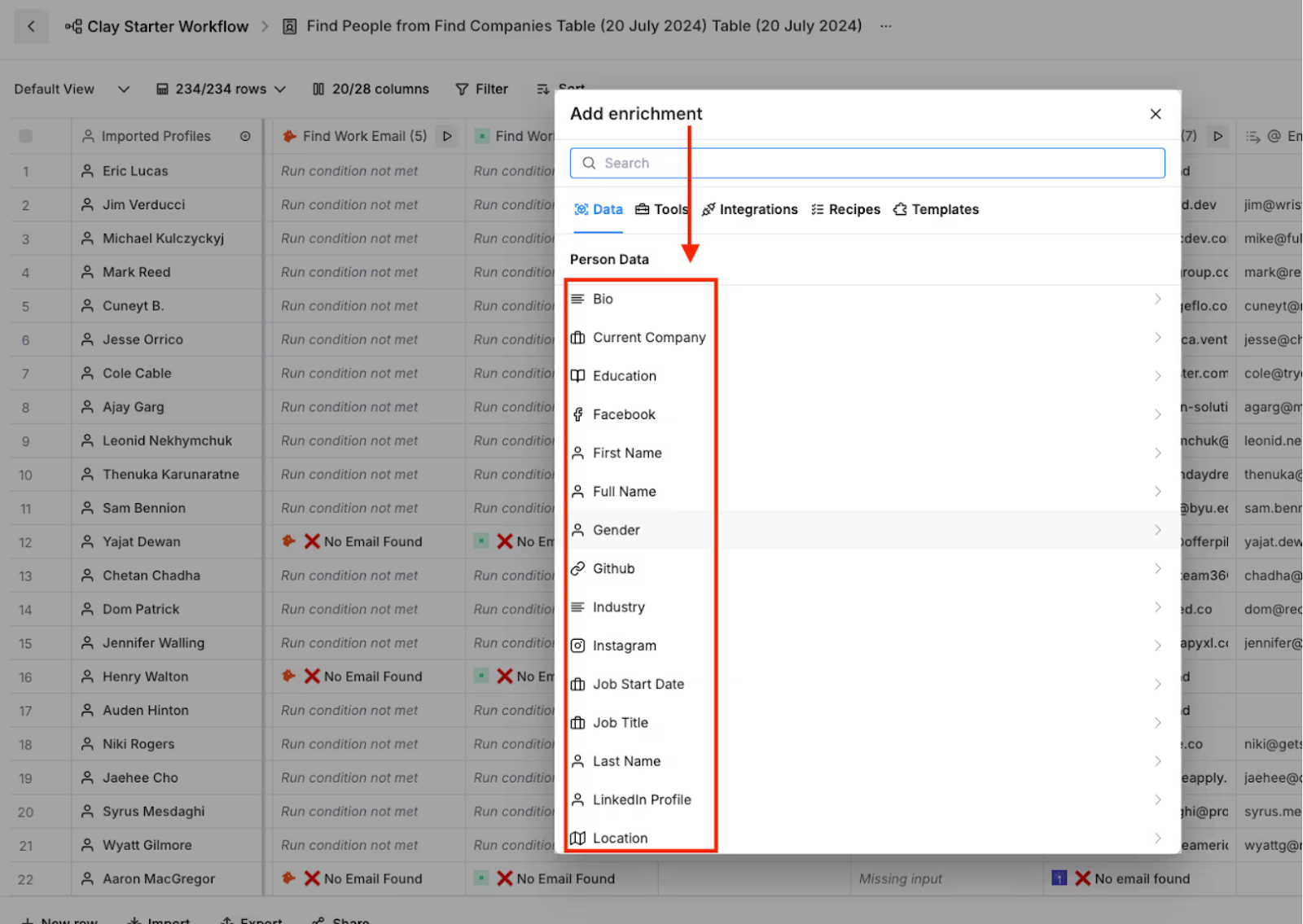
Now it’s time to make those rows useful.
Clay connects to over 100 data providers to add missing details like:
- Work emails
- Job titles
- Company size
- Tech stack
- Funding details
You can choose what to enrich, so you don’t waste credits on data you don’t need.
3. Filter and clean
Next, filter out low-fit leads.
You can remove duplicates, fix messy names, and keep only the companies that match your ICP.
Everything updates in real time.
4. Score your leads
Use simple formulas to give each lead a score.
For example:
+10 points if the company uses HubSpot
+5 points if they recently raised funding
+3 points if they’re hiring SDRs
This helps you know who’s worth contacting first.
5. Send leads to outreach
Once your list is ready, you can connect Clay directly to tools like Salesforge.
Your enriched contacts move instantly into live sequences, no CSV files, no uploads.
Salesforge then runs your outreach across email and LinkedIn while Clay keeps your lead data fresh in the background.
That’s it.
A full lead generation system, from discovery to outreach, built in one simple workflow inside Clay.
Step-by-Step: How to Use Clay for B2B Lead Generation
Here’s how you can set it up and start using it for lead generation.
1. Create your Clay account
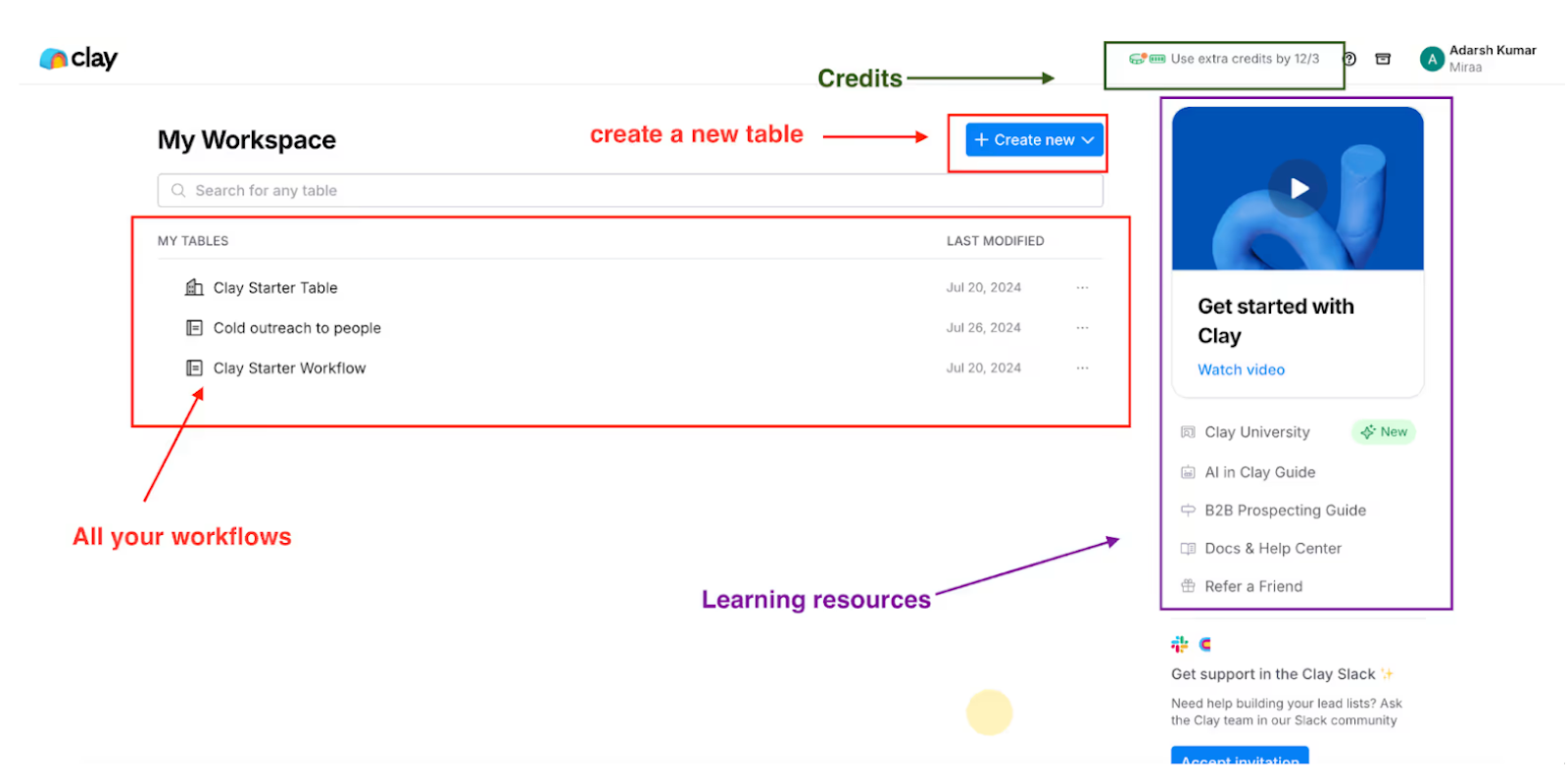
Go to the Clay website and sign up.
After you log in, take a minute to look around the dashboard.
You’ll see where your tables and data will appear.
2. Add your leads or create a new table
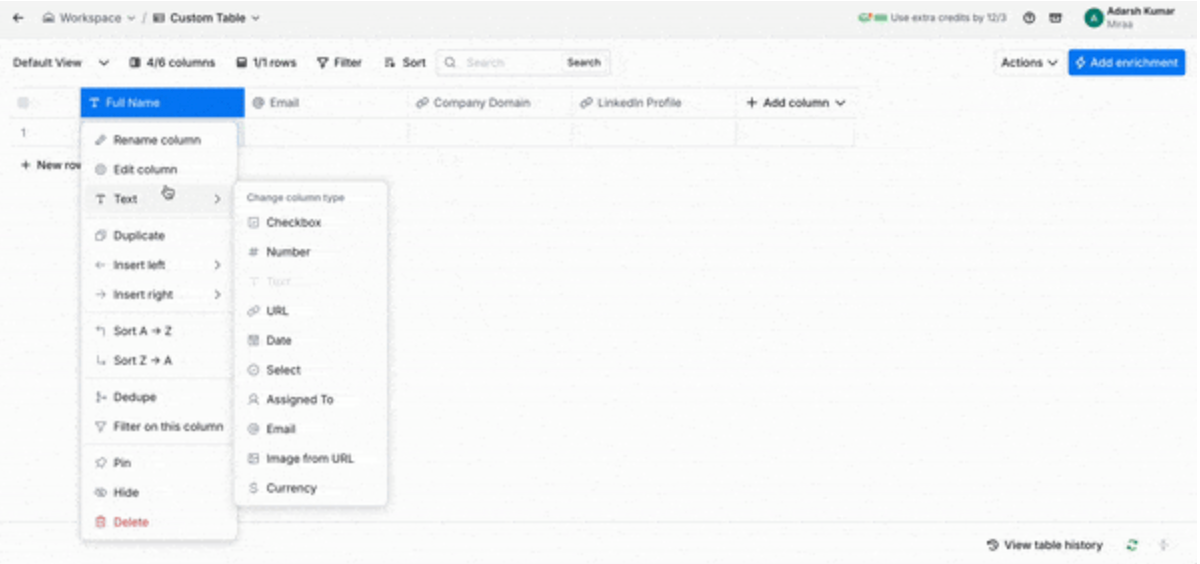
You can upload a file with your leads or start a new table from scratch.
Each table is like a sheet where your leads live.
You can add columns for names, emails, company names, or anything you need.
3. Connect data sources
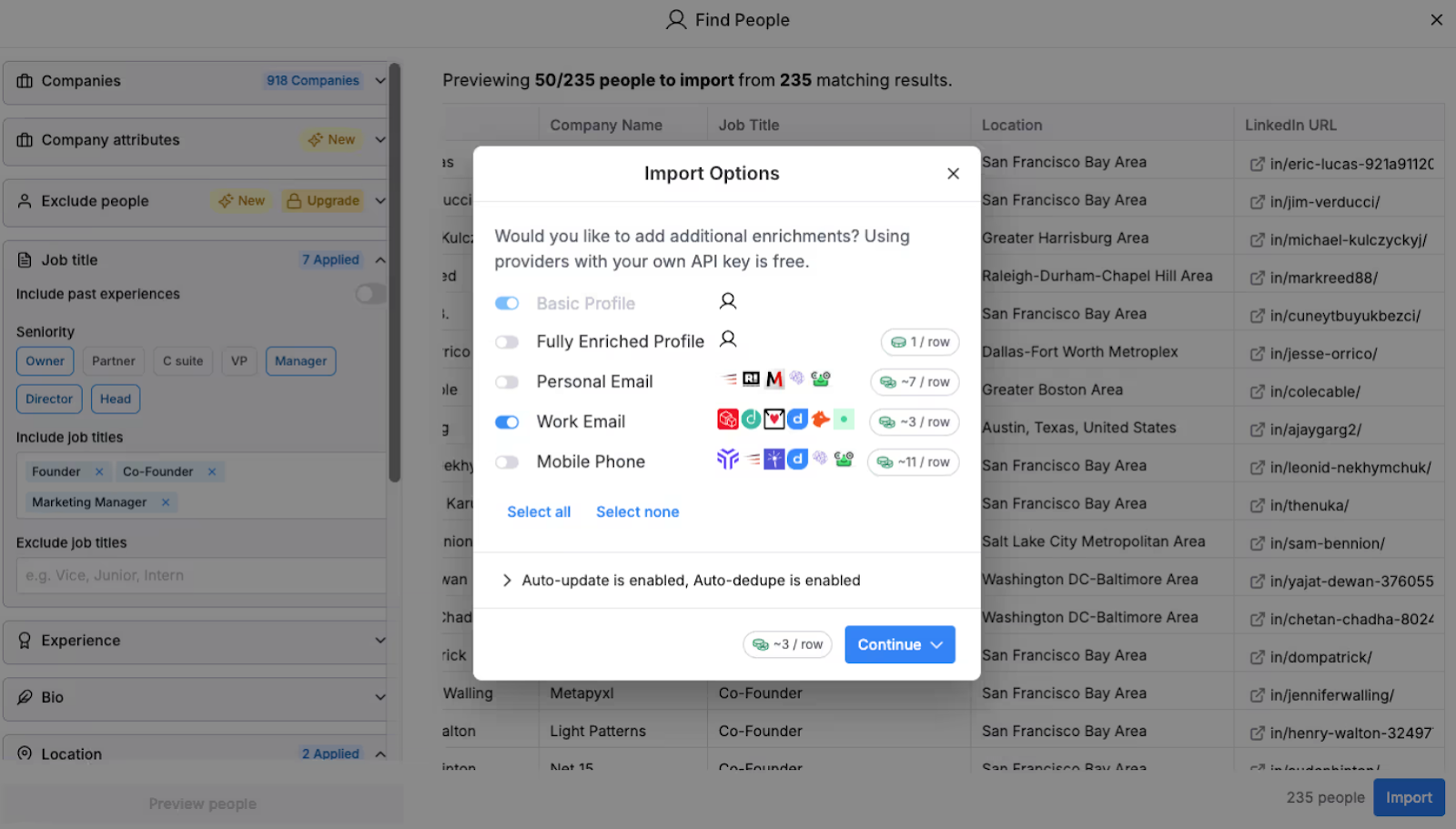
This is where Clay saves you time.
It connects to 100+ tools and websites to fill in missing info.
It can find job titles, company size, verified emails, tech used, and more.
You just choose what details you want, and Clay adds them automatically.
4. Use AI to personalize your messages
Clay has a small AI helper called Claygent.
You can tell it what to write, like short intro lines or notes about each company.
It helps you make messages sound personal without writing everything by hand.
5. Connect to your outreach or CRM tool
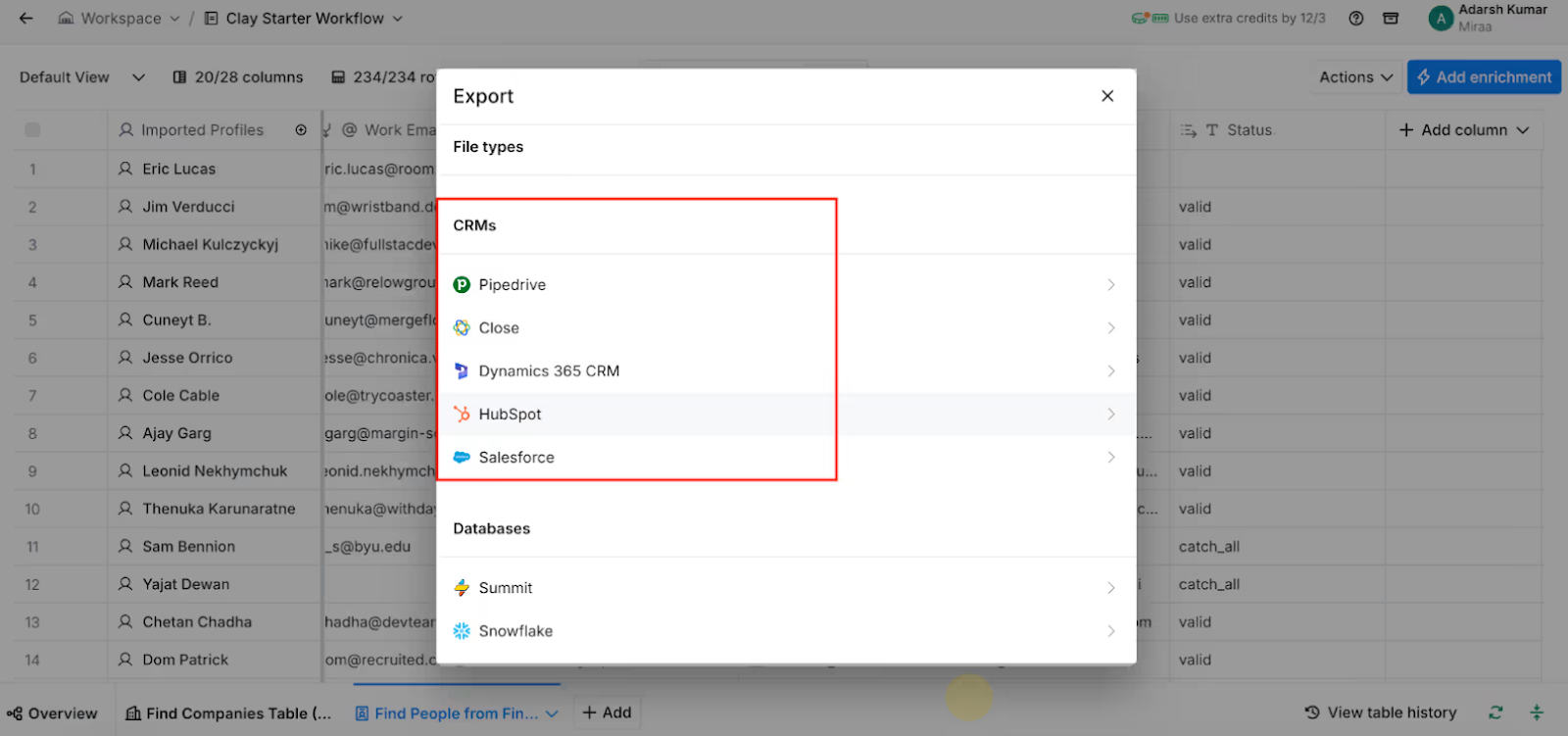
Once your leads are ready, you can send them straight into your outreach tool, like Salesforge or your CRM.
No need to download or upload anything.
Clay keeps your leads updated in both tools automatically.
6. Test your setup
Before you start using it for real, do a quick test.
Check if the data looks correct and messages are showing right.
If everything looks good, you’re done.
Now you have a working Clay setup, ready to find, enrich, and send leads for you automatically.
Pro Tips for Automating Clay Workflows
Here are a few quick things that’ll save you time and keep your data clean:
- Only enrich good leads.
Don’t waste time on everyone. Use filters so Clay only pulls data for the right people.
- Refresh your data every week.
Set it to update on its own so you always work with fresh info.
- Add webhooks for live updates.
This keeps your CRM in sync automatically, no more exports or imports.
- Save your best workflows.
Once something works, save it as a template. You’ll thank yourself later.
- Check emails before sending.
Always verify them first. It saves credits and keeps your emails out of spam.
- If you’re using Salesforge, connect it with Clay.
That way, new leads move straight into your campaigns.
No CSVs.
No manual uploads. Just clean, updated data your team can start using right away.
Common Mistakes to Avoid
Before you set up your next workflow, here are a few small things to watch out for.
These mistakes look harmless, but they can waste time and hurt results.
- Don’t enrich everything.
Only enrich the leads that fit your filters. Doing it for everyone burns your Clay credits fast.
- Don’t depend on one data source.
Mix a few providers. That’s how you get accurate data when one source misses something.
- Score your leads first.
Always rate your leads before you start outreach. It helps you focus on the best ones instead of emailing everyone.
- Don’t over-personalize bad data.
Make sure your data is right before adding names or hooks. Wrong info makes your email look fake.
- Warm up your domains.
If you’re doing cold outreach, warm your inboxes first. It helps your emails land in inboxes, not spam.
Keep these in mind, and your Clay workflows will run smoother and cost you less.
How Much Does Clay Cost?
Let’s talk about pricing, because that’s usually the first thing everyone wants to know.
Clay doesn’t work on the usual “one-size-fits-all” subscription model.
Instead, you pay with Clay credits, which you can use for data enrichment, web scraping, or AI-generated messages.
You only pay for what you use, no long-term contracts, no hidden fees.
Here’s a quick look at the plans:
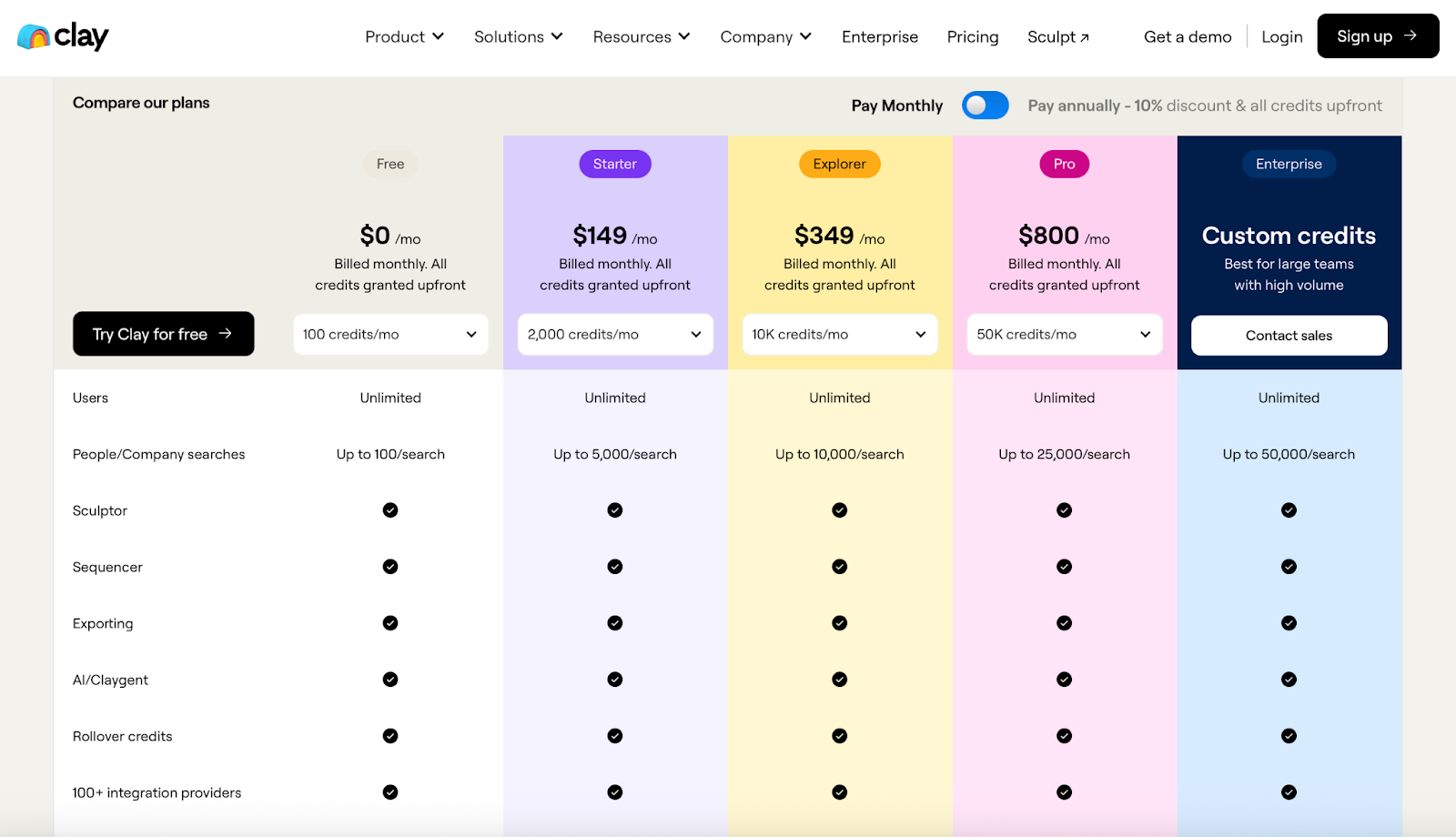
- Free plan – $0/month
Try Clay with limited credits. Perfect if you just want to test it out.
- Starter plan – $149/month
Great for small teams building their first workflows.
- Explorer plan – $349/month
Ideal if you’re running regular enrichment and prospecting campaigns.
- Pro plan – $800/month
Best for growing GTM teams that handle large data sets every week.
- Enterprise plan – Custom pricing
Tailored for companies with big outbound teams or complex data stacks.
The higher your plan, the cheaper your credits get. Clay’s Pro plan can be up to 7x cheaper per credit compared to the Starter plan.
Clay also gives you full transparency on data providers. You can use over 100+ sources directly, no markups, no middlemen.
And if you’re using Salesforge for outreach, the two tools work perfectly together.
You can build and enrich leads in Clay, then push them straight into your Salesforge sequences, no CSVs, no copy-paste, no delays.
Conclusion
So, now you know how Clay can help you find and organize your leads, faster and cleaner.
You don’t have to spend hours on LinkedIn, copy-pasting names, or fixing messy sheets anymore.
Clay does the hard work for you.
It finds people, adds the right info, scores them, and keeps everything up to date.
If you want to go one step further, connect Clay with Salesforge.
That way, you can move your leads straight into live email and LinkedIn campaigns, no files, no uploads, no waiting.
Clay builds your list.
Salesforge helps you talk to those leads and turn them into customers.
Simple, fast, and all in one flow.
If you’re ready to make your lead generation run on autopilot,
Try Salesforge today and see how much easier outbound can be.
![How to Use Clay for B2B Lead Generation? [Workflow Examples]](https://cdn.prod.website-files.com/6436c3ac9f9fd0594d00b9fc/6944bb64b48b24d1dba8fea0_Duplicate-me%20(7).png)