In-Depth QuickMail Review: Our Analysis After Using It for 28 Days

We used QuickMail for 28 days. Every single day.
This is not a list of features from their website.
This is our real review, what worked, what didn’t, and how it helped us send cold emails and LinkedIn messages without landing in spam.
If you’re thinking about using QuickMail, this blog will help you decide. We’ll show you:
- What we did with it
- What we liked and didn’t like
- Who it’s best for in 2025
Let’s jump into the full QuickMail review.
What Is QuickMail?
QuickMail is a cold outreach tool made for sending emails and LinkedIn messages at scale.
You can connect as many inboxes and LinkedIn accounts as you want and send from all of them without limits.
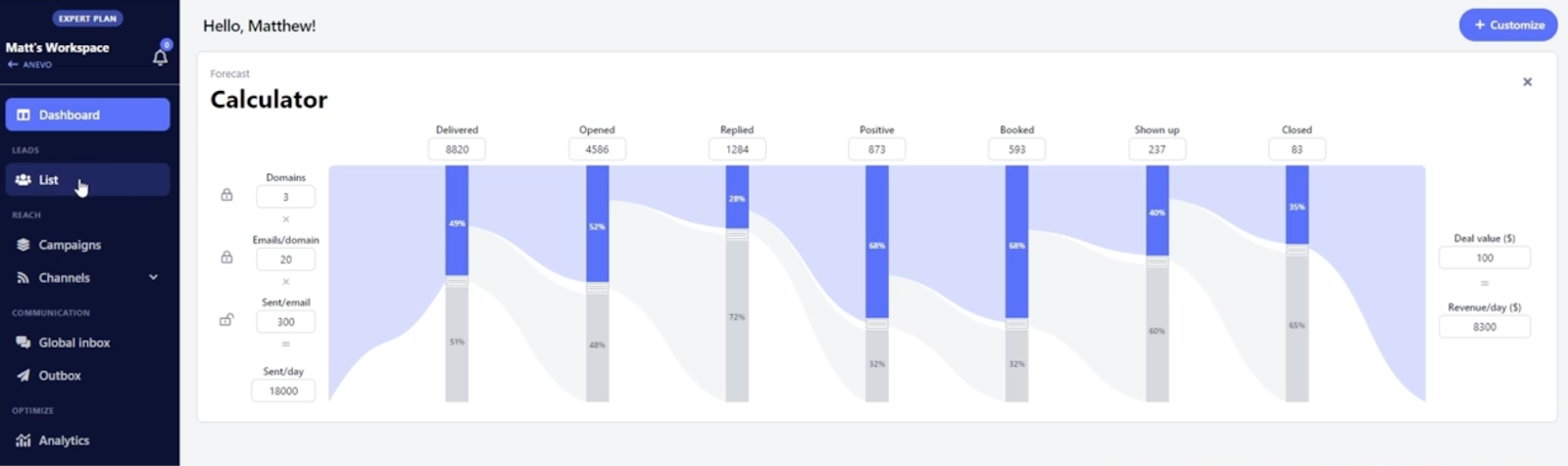
It’s not just for sending, you can also:
- Handle all replies from one inbox (email + LinkedIn)
- Rotate inboxes automatically to protect deliverability
- Reword messages with AI so they don’t land in spam
- Track opens, clicks, replies, and meetings booked
QuickMail also gives you access to:
- Auto-warmed inboxes (with MailFlow built-in)
- Pre-configured email accounts ready to send
- API and Zapier to connect with tools like HubSpot or Pipedrive
- Full control of your team without sharing logins
If you’re an agency or sales team running outbound, QuickMail helps you send more safely, reply faster, and scale campaigns without breaking things.
How We Tested QuickMail for 28 Days?
We didn’t just look at QuickMail’s features. We actually used it for 28 days, to send cold emails, manage replies, and test how well it works for real outreach.
Here’s what we did step by step.
- First, we connected multiple email accounts and LinkedIn profiles.
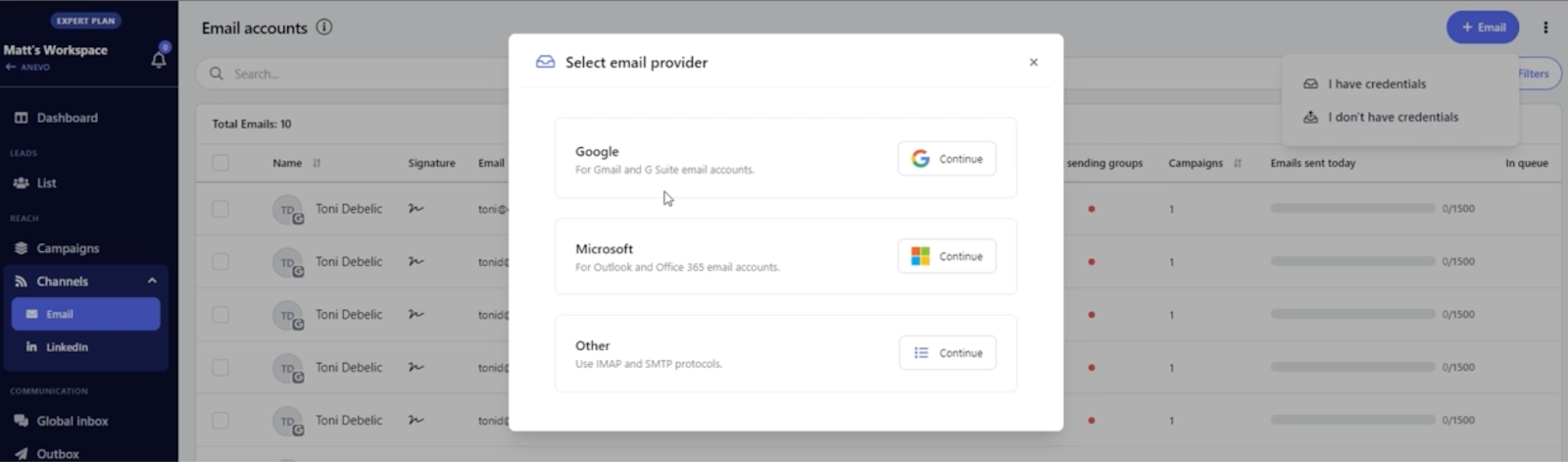
QuickMail made this easy.
It even lets us rotate inboxes automatically and use Google sign-in without extra setup.
- We created workspaces to manage our cold email campaigns.
Each workspace acted like a client folder, perfect if you’re running lead gen for others too.
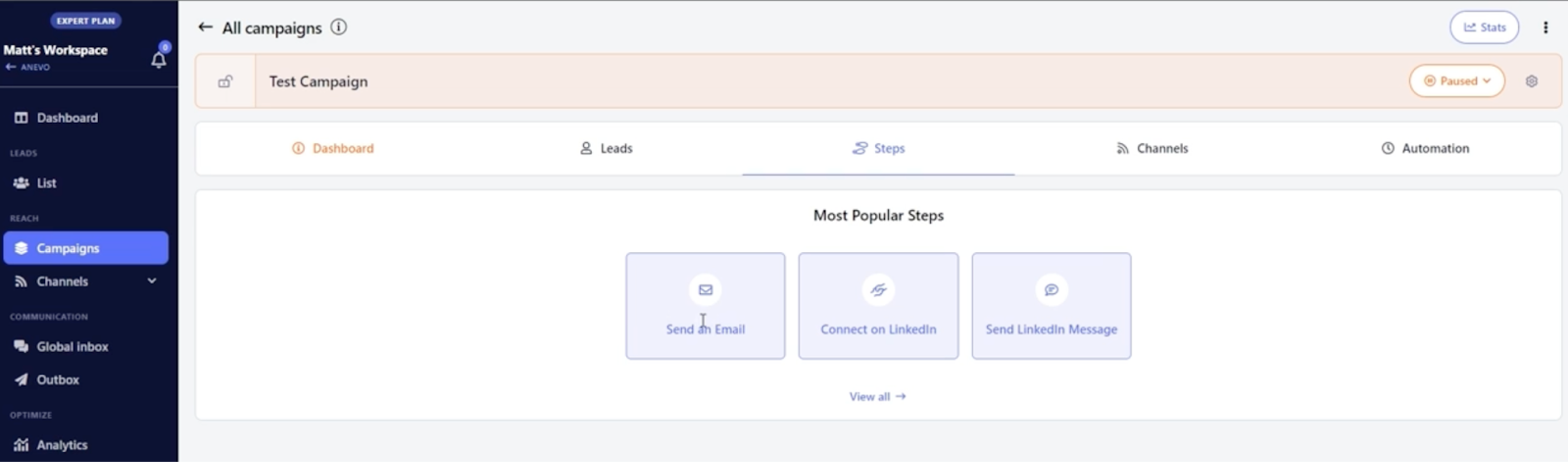
- We added leads inside the platform and built out our campaigns.
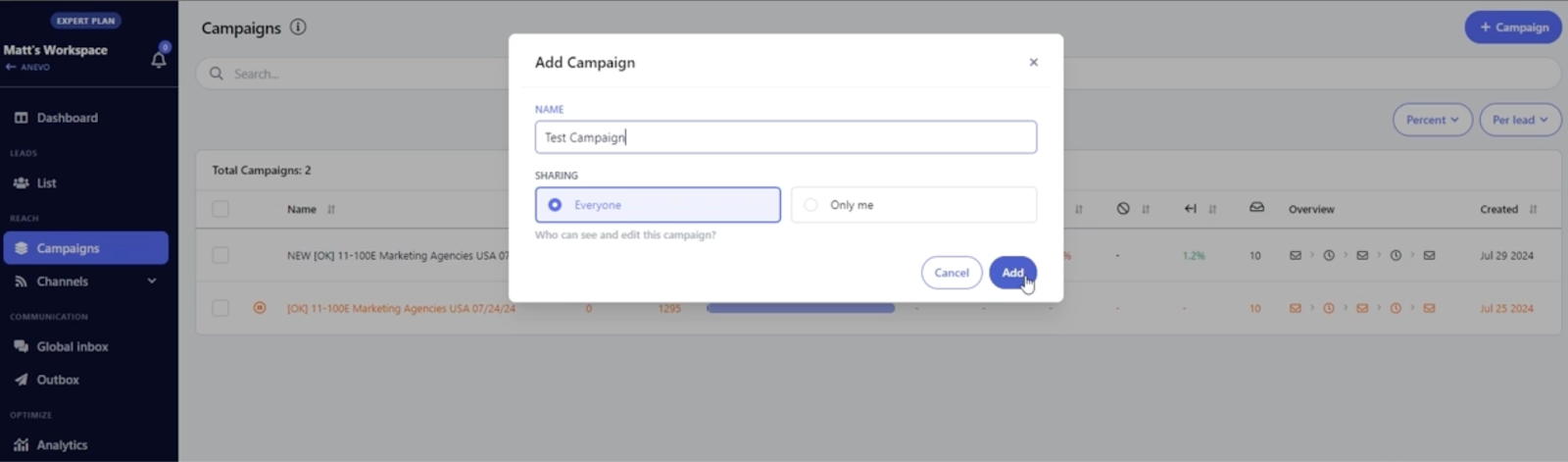
QuickMail lets us add email and LinkedIn steps in the same flow.
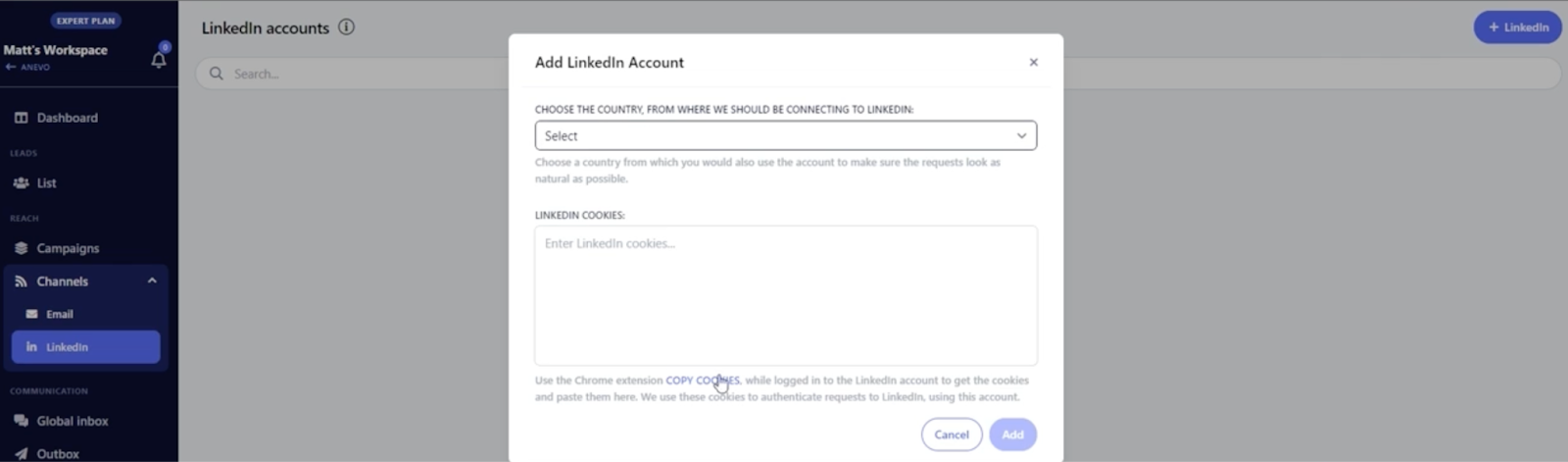
So we could send a cold email, then follow up on LinkedIn, all in one campaign.
- We tested the Deliverability AI and Smart Sending Groups.
If any sender's performance dropped, QuickMail automatically swapped it out with a healthier inbox.
This helped us avoid spam folders without doing anything manually.
- We wrote cold emails using QuickMail’s editor.
It had a “Reword with AI” tool that rewrote our text to improve deliverability.
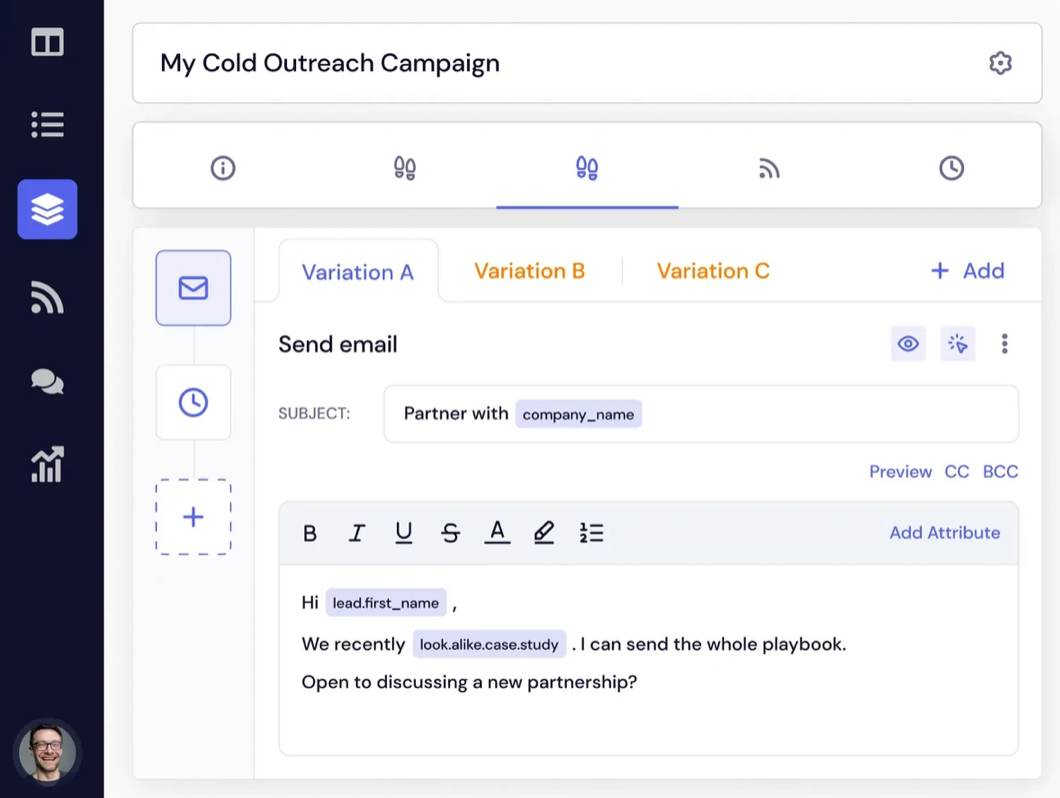
It also supported spintax to change words like “Hi” and “Hey” randomly.
- We used the Analytics section every week.
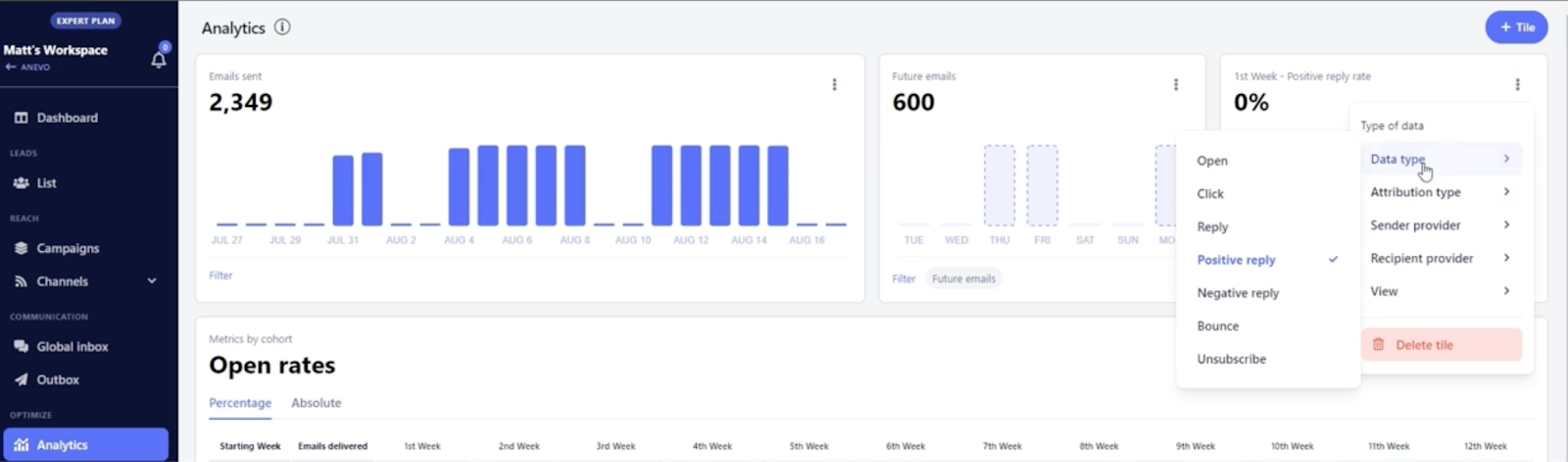
It showed us open rates, reply rates, and bounce data in detail.
We even saw results by inbox and sending provider.
- We checked replies using the Global Inbox.
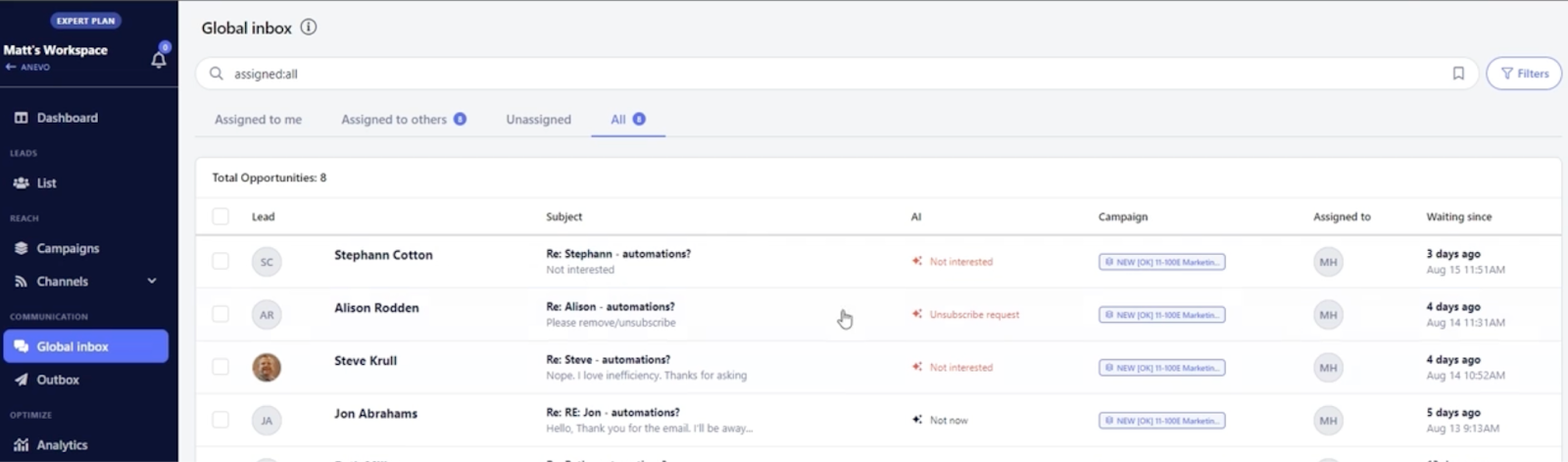
All replies, email and LinkedIn, came into one place.
We could respond, assign to team members, and even snooze or tag conversations.
- We also tested email warm-up using MailFlow.
QuickMail gave us a free warm-up tool to keep inboxes healthy.
The scores were synced automatically between MailFlow and QuickMail.
By the end of 28 days, we had:
- Sent real campaigns
- Rotated inboxes based on performance
- Used LinkedIn and email in one flow
- Handled all replies in one place
- Got detailed stats to improve what wasn’t working
Next, let’s break down the features that stood out most.
QuickMail Features:
- You can connect unlimited email and LinkedIn accounts and send from all of them.
- QuickMail rotates your inboxes for you so you don’t have to do anything manually.
- If one inbox gets weak, Deliverability AI pauses it and uses a better one instead.
- You get a tool called Reword with AI that rewrites your email to sound more natural.
- You can send emails and LinkedIn messages in the same campaign, step by step.
- All your replies, email and LinkedIn, show up in one inbox so you don’t switch tabs.
- You can assign replies to your VA or teammate without sharing passwords.
- Smart Sending Groups swap inboxes in and out based on performance, without you touching anything.
- You get a free warm-up for all your inboxes through MailFlow, and it connects automatically.
- The analytics dashboard shows open rate, reply rate, and other numbers clearly by week.
- You can build multi-step campaigns with wait times, LinkedIn steps, and follow-ups.
- There’s a spintax feature that lets you rotate words like "Hi" and "Hey" to look different in each email.
- You can add as many team members as you want, no extra seat cost.
- Everyone gets their own login, and you can track who did what inside QuickMail.
- Connecting Google accounts is super easy, no special codes or manual setup needed.
Where QuickMail Might Not Work?
- There’s no built-in AI SDR to help you find leads or book meetings automatically.
- You have to bring your own leads, there’s no lead database or contact finder inside.
- DNS records (SPF, DKIM, DMARC) must be set up manually, no automated DNS setup tool.
- You can’t test if your emails go to inbox or spam, no inbox placement tester included.
- It doesn’t support multi-language cold emails out-of-the-box, no AI translation or rewriting help.
- LinkedIn outreach requires manual cookie input, no one-click LinkedIn integration.
- There’s no spam trigger tester to check your email content before you hit send.
How Much Does QuickMail Cost?
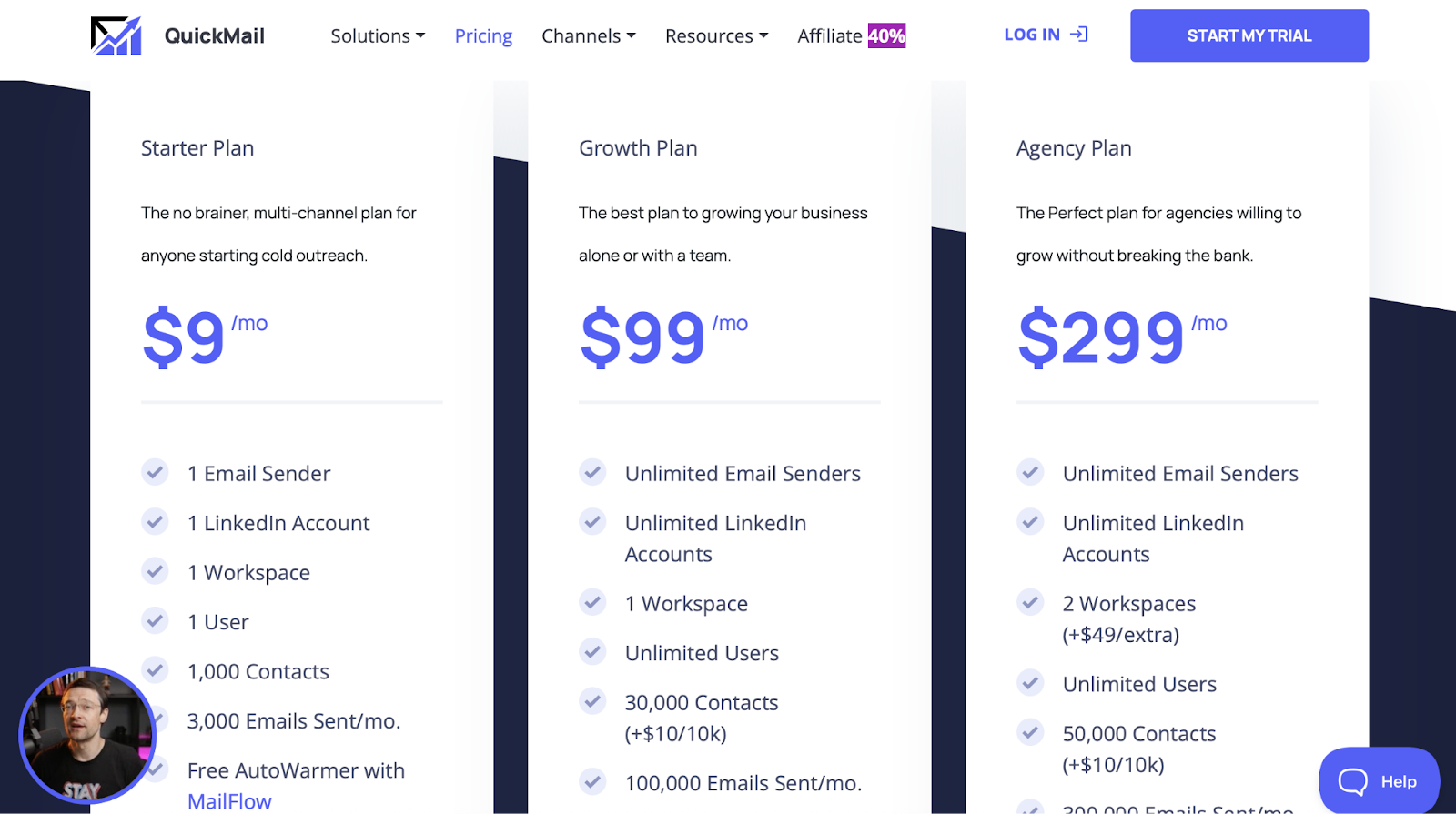
QuickMail gives you 3 simple plans:
1. Starter Plan – $9/month
If you’re just getting started, this one’s enough.
- You get 1 email and 1 LinkedIn account.
- You can send 3,000 emails each month.
- Store up to 1,000 contacts.
- Use AutoWarmer for free.
- Zapier is included.
- You’ll also get expert help if you get stuck.
2. Growth Plan – $99/month
This is for people who want to send more and grow fast.
- You get unlimited email and LinkedIn senders.
- Invite your whole team, no extra cost per seat.
- You can send up to 100,000 emails every month.
- Store 30,000 contacts (and add more for $10 per 10,000).
- Comes with API access and faster support.
3. Agency Plan – $299/month
Best if you're managing campaigns for clients.
- Unlimited email and LinkedIn accounts.
- 2 separate workspaces (add more for $49 each).
- Invite as many users as you like.
- Send 300,000 emails every month
. - Store 50,000 contacts (add more if needed).
- Includes everything in Growth + webhook access.
Now, QuickMail’s pricing might look okay at first.
But once you start using it, you’ll notice something.
You still need to:
- Bring your own leads
- Set up your DNS records manually
- Use external tools for warming
- Handle replies without any smart help
- And write cold emails yourself, one by one
So even though you’re paying $99 or $299 every month, you’re still doing most of the hard work on your own.
That’s where things start to feel… off.
You’re not getting AI to help.
You’re not getting built-in leads.
And you’re not getting full control of your outreach, unless you stitch together 3–4 other tools.
At this point, you might be wondering:
“Is there something that just does more, without me doing all this manually?”
Well, that’s exactly what we’re about to show you next.
Let’s look at the best QuickMail alternatives that give you more automation, better control, and actually save your time.
#1 QuickMail Alternative: Salesforge — Best for Scaling Cold Outreach with Less Manual Work

If you like what QuickMail does but wish it handled more of the manual work for you, Salesforge is a strong alternative to consider.
It’s a multi-channel outreach platform that combines email, LinkedIn, inbox management, and deliverability tools in one place.

Instead of relying on multiple add-ons or integrations, you can manage everything directly inside Salesforge.
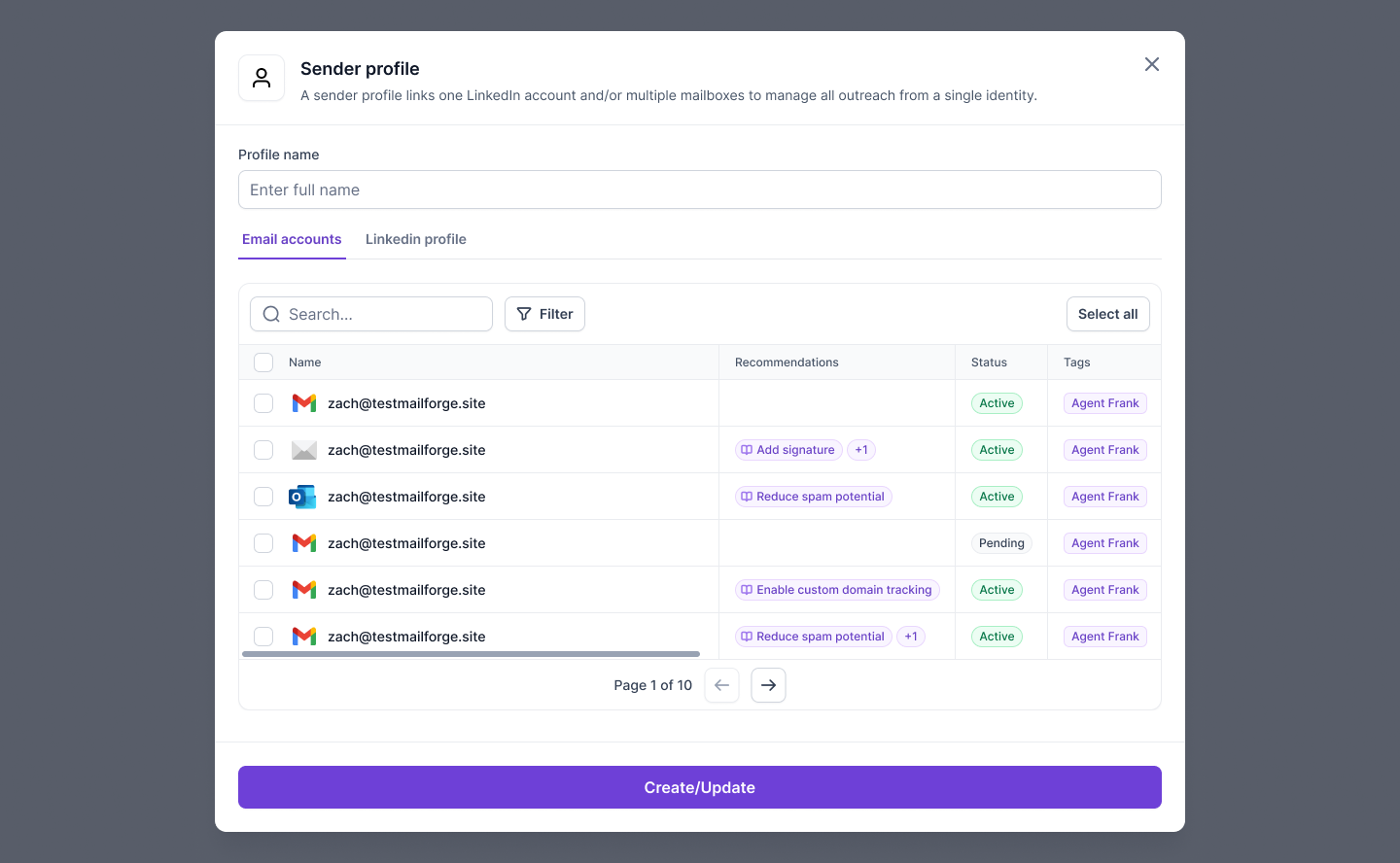
What do you get with Salesforge?
All-in-one setup
Salesforge covers the entire outreach workflow, from domain setup and warm-up to sending, tracking, and replying, through its connected tools like Mailforge, Warmforge, and Infraforge.
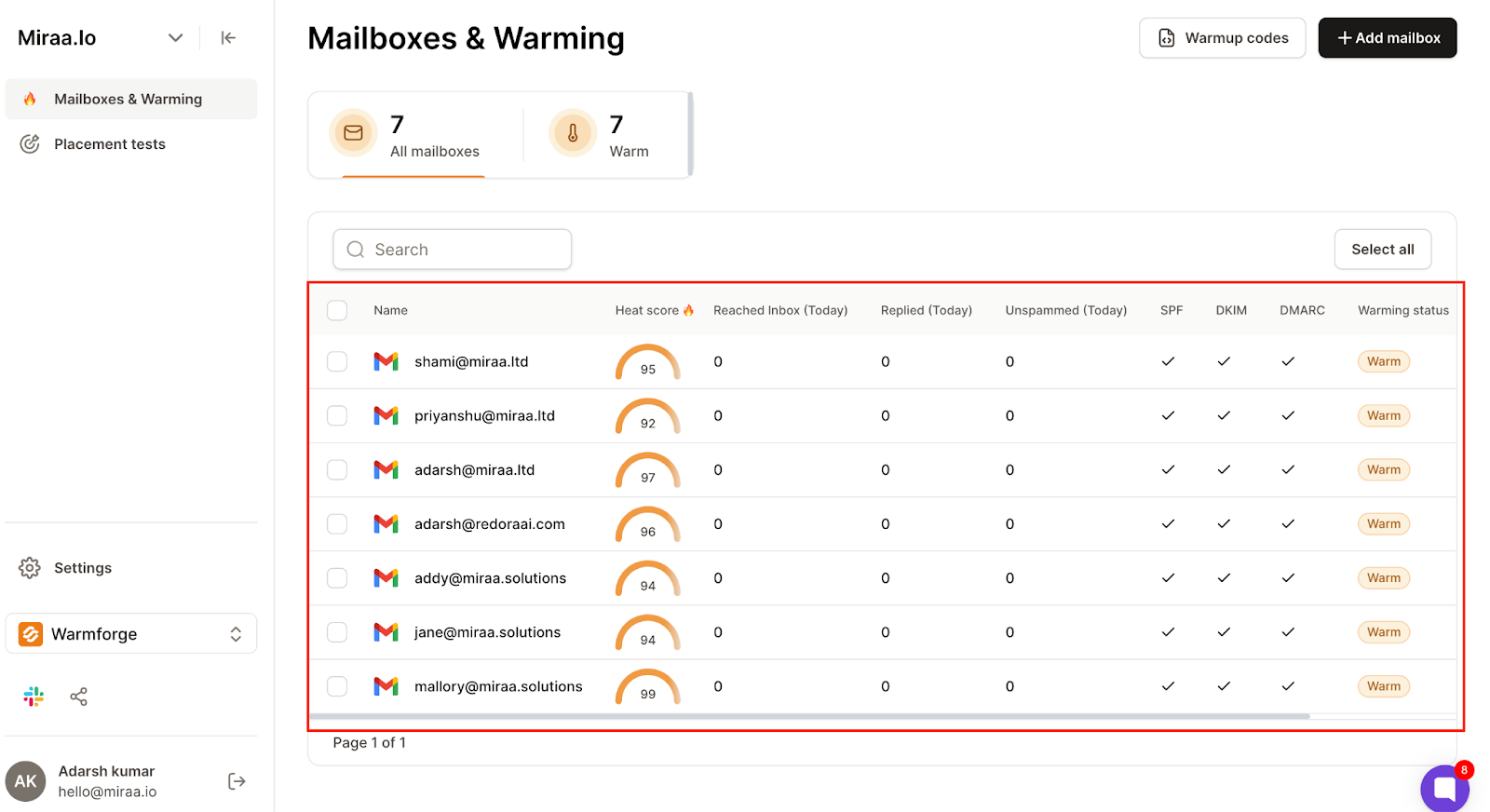
Unlimited sending
Unlike tools that charge per seat, Salesforge lets you connect as many mailboxes and LinkedIn accounts as you need under one subscription.
Unified inbox
Every reply across email and LinkedIn appears inside Primebox™, so you don’t have to switch between different inboxes.

AI support when you need it
Salesforge includes an optional AI SDR, Agent Frank, that can handle parts of your outreach automatically, such as prospecting, message creation, and meeting booking.
Multi-language capability
You can run outreach in 20+ languages, which helps if you’re targeting prospects in different regions.
Pricing:

All plans include unlimited warm-up, inbox rotation, Primebox™, and both email + LinkedIn channels.
In short, Salesforge is better suited for teams or agencies that want to run larger, multi-channel campaigns without managing separate tools for warm-up, deliverability, and LinkedIn outreach.
If your focus is on scaling outreach efficiently rather than handling setup manually, it’s worth exploring.
Conclusion
After using QuickMail for 28 days, I’d say it’s a solid tool for cold outreach.
It’s good at what it does, sending emails, managing inboxes, and mixing LinkedIn steps in the same campaign.
But it still needs a lot of manual work.
You have to set up DNS records, bring your own leads, and manage deliverability yourself.
For solo users, that might be fine.
For teams that want to scale faster, it can start to feel like too much effort.
And here Salesforge gives you everything, from warm-up and deliverability to inbox management and AI outreach, already built in.
You don’t have to connect five different tools or fix things by hand.
QuickMail works best if you want full control.
Salesforge works best if you want things to just run smoothly.
If that sounds like what you need, you can check out Salesforge and see how it fits your outreach setup.
.png)
.png)

.png)